Why AI Image Tools Misspell Text on Amazon Infographics
You generate an infographic for a listing. The composition is right, the lighting is convincing, the product is recognisably yours. Then you read the callout in the top left and it says Prenium Cottn Blennd. There is no setting to fix that, no spell check to run, and generating it again tends to produce a different word that is wrong in a different way.
This is not one tool having a bad day. It is a property of how generative image models work, and it is the a common reason for trying AI product imagery once and going back to briefing a designer.
Why image models cannot spell
A generative image model produces pixels. It has learned what letterforms look like, the way it has learned what chrome or knitted fabric looks like, as visual texture that tends to appear in certain contexts. What it has not learned is that a word is an ordered sequence of characters that either is or is not correct. So it renders something with the shape, spacing and rhythm of the word you asked for, and whether that thing is actually the word is close to incidental.
The failures are not evenly distributed. Short, extremely common words on large type in English often survive. Long strings fail. Small type fails. Brand names fail almost by definition, because a made-up word has no weight of training examples behind it. Anything with an unusual technical term, a measurement, a percentage or an accented character is at risk. And the newer generations of image model have genuinely improved at this without solving it, which is arguably worse: output that is right often enough to look dependable invites you to stop checking.
The mechanism matters less than the consequence. When a model spells a word wrong, you cannot correct it, because there is no text there to correct. The letters are pixels welded into the artwork at the same layer as the shadow under the product. Your only lever is to run the whole generation again, which also changes the photograph.
Why this bites harder on Amazon than anywhere else
On most channels a garbled caption is embarrassing. On Amazon it lands on the exact assets doing the selling. The main image is required to be the product alone on a pure white background with no text, logos or watermarks baked in, so every written claim you make in your gallery is concentrated into the secondary images and A+ Content. Those are the assets a shopper zooms into before deciding. If the AI wrote the words on them, that is where the mistake is.
There is a compliance edge to it too. Amazon expects image content to represent the product honestly, and a model that invents a plausible-looking specification, a percentage, or a certification badge is not making a typographical error, it is making a claim you never approved. That is a different order of problem from a missing letter.
Multi-marketplace sellers get a third version of the pain. The same product photograph is fine in every European marketplace. The words on it are not. If the caption is baked into the pixels, a German listing needs a full regeneration rather than a translation, and you end up with a photograph that no longer matches the one on your UK page. Read this alongside our guide to Amazon main image requirements, which covers the white-background and no-text rules in full.
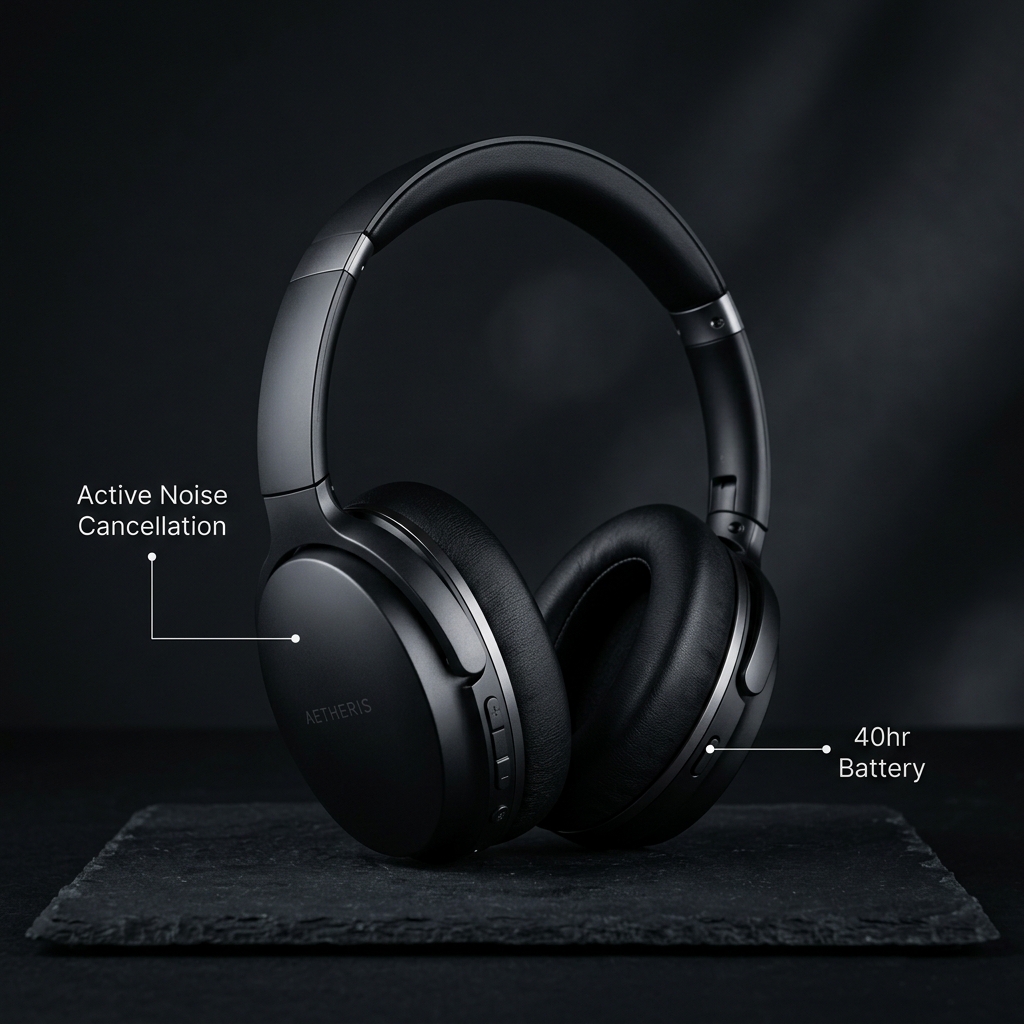
The fix is to stop asking the model to write
Separate the two jobs. Let the image model do the thing it is good at, which is producing a photograph, and let a typesetting engine do the thing it has done reliably since the 1980s, which is putting correctly spelled words at a known position in a known typeface. The moment those are two layers instead of one, the spelling problem stops existing rather than getting better.
In practice that means four habits, and they apply whatever tool you use, including a plain combination of a generator and any layout application.
- Ask for a text-free background explicitly. Cover every category of glyph rather than just saying "no text". A phrasing that works is "no text, words, letters, numbers or logos in the image". Models still slip, so check.
- Leave room in the composition. A caption needs somewhere to go. Ask for negative space on the side you intend to write on, rather than fitting the words around a product that fills the frame.
- Keep the copy as data, not as pixels. The caption should live in a text field with a position, a size and a colour attached to it, so it can be re-rendered rather than repainted.
- Keep the layered source, not only the flattened JPEG. The flattened file is the deliverable. The layered version is the thing that lets you change one word in six months without redoing the photograph.
What layering buys you beyond correct spelling
Spelling is the reason people notice the problem, but it is the smallest of the benefits. Once the words are a real layer, a set of otherwise expensive changes become trivial.
Wording changes stop costing a generation
Legal asks you to soften a claim. A supplier changes a material. A competitor starts making the same point better and you want to say something else. With baked text, each of those is a regeneration and a new round of review on a photograph that was already signed off. With a text layer, it is a typing job.
Type stays sharp at every size
Text drawn by an image model is resampled artwork, so it softens and fringes when the image is scaled, exactly where Amazon shows your gallery smallest. Vector type composited at the final output size stays crisp, which matters most on the mobile thumbnail, which is often the first version of the image a shopper sees.
Localisation becomes a translation, not a reshoot
One photograph, several caption sets. That is only possible if the caption was never part of the photograph.
Your brand typeface actually gets used
An image model approximates a typeface. A compositor uses the file. If you have spent money on brand guidelines, the difference between the two is visible to anyone who knows the brand.
Where Rufusly fits
Rufusly's A+ compositor is built on exactly this split. The photographic background is generated with an instruction not to render any text, and every word the shopper reads is composited afterwards as a real vector text layer over the top. The compositing step makes no AI call at all, so the words it draws are the words you typed, rendered as sharp type at the final output size, and changing a headline deducts no image credit.
The fonts are bundled with the renderer rather than borrowed from whatever machine happens to run the job, so the same module rendered today and next month uses the same typeface. Image Studio generates Hero, Lifestyle, Infographic, Detail Grid, Size Guide, Alt Lifestyle and A+ desktop and mobile assets from one real product photograph, and infographic callouts are stored as editable overlay layers rather than baked in. There is also a repair path: if you already have an image with text burned into it, Rufusly can read the labels, clear them from the picture, and hand the image back with the same wording as editable layers. How cleanly the background reconstructs depends on what was behind the text, so the result is worth a look before you use it. That one does spend an image credit, because it runs a real edit on the pixels, and it is refunded if the edit fails.
Taking a design into Canva without losing the text
Compositing solves correctness. It does not make anyone a designer, and at some point you want to move a box, change a colour, or add a graphic element that no generator was going to invent for you. That is editing, and editing is a job for an editor.
Rufusly works with Canva for exactly that step. You connect your own Canva account, and an A+ module can be pushed across as an editable design in which the captions arrive as real Canva text boxes rather than as a flat picture with the words already burned in. You edit in Canva, then bring the finished design back into your Rufusly library as a new image.
Two things are worth being plain about. The connection is per user and the editing happens inside your own Canva account, so any Canva credits or paid Canva features you use while editing are billed by Canva under your own Canva plan, not by Rufusly. Rufusly is not affiliated with or endorsed by Canva. And Canva's download links for a finished export are short-lived, expiring 24 hours after the export is made, so a finished asset needs copying somewhere durable rather than being left as a link. Rufusly copies the file into your own library automatically when you bring a design back, which is what makes the link expiry a non-event.
A check worth running on your current catalogue
Open the gallery for your five best-selling ASINs and read every word on every secondary image and A+ module at full zoom, slowly, out loud if you have the office to yourself. Skimming is exactly how a wrong letter survives for a year: your brain supplies the word you expected. Then shrink each image to roughly the size of a mobile search thumbnail and check the captions are still legible at all.
Then ask the question that predicts your next six months: if you had to change one word on any of those images this afternoon, could you? If the answer involves regenerating or rebriefing the whole asset, the words are in the wrong layer, independent of whether they happen to be spelled correctly today. Our A+ Content best practices guide covers what those modules should be saying once you can change them freely.
Frequently asked questions
Why does text in AI-generated product images come out misspelled?
Because image generators draw text rather than typeset it. A generative image model produces pixels, and it has learned what letterforms look like as visual texture, not what words mean as sequences of characters. It will happily produce something that has the shape and rhythm of a word without being that word. Longer strings, small type, brand names and unusual product terms fail most often. The mistakes are also unpredictable, so regenerating tends to give you a different error rather than a correction. The reliable fix is not a better prompt, it is to generate the picture without any text and add the words afterwards as a real text layer.
Can I put text or a logo on my Amazon main image?
No. Amazon requires the main image to sit on a pure white background showing only the product, with no text, logos, watermarks or badges baked into the pixels. Text belongs on your secondary images and in A+ Content, where it is allowed and where shoppers actually read benefit claims. That rule is also why misspelled AI text is a bigger problem on Amazon than it looks: all of your written persuasion is concentrated on the assets that are permitted to carry words.
How do I stop an AI image generator from putting text into an image?
Say so explicitly in the prompt, in the plainest possible terms, and cover every category of glyph rather than just the word "text". A phrasing that works is "no text, words, letters, numbers or logos in the image". Models still slip occasionally, so treat the instruction as a strong preference rather than a guarantee and check the output before you use it. The instruction is only half the method: it is worth doing because the words are going to be added afterwards as an editable layer, which is what actually makes the spelling correct.
Can I change the wording on a product image without regenerating it?
Only if the wording was kept as a separate text layer. If the words were drawn into the pixels by an image model, there is nothing to edit and the whole image has to be generated again, which changes the photograph as well as the caption. This is the practical argument for compositing: a layered image lets you correct a typo, swap a claim after a compliance review, or translate a caption for another marketplace, without touching the artwork underneath.
Does editing an image in Canva use my own Canva account?
In Rufusly, yes. Rufusly works with Canva through a per-user connection: you authorise your own Canva account, the design opens in that account, and any Canva credits or paid Canva features used while editing are yours and are charged by Canva under your own Canva plan. Rufusly is not affiliated with or endorsed by Canva. Canva download links for a finished export are short-lived, expiring after 24 hours, so the finished file should be copied somewhere durable rather than treated as stored in the link itself.
Rufusly is an independent service and is not affiliated with, endorsed by, or sponsored by Amazon.com, Inc. or its affiliates. Amazon and FBA are trade marks of Amazon.com, Inc. or its affiliates.